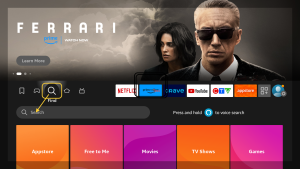
Select “find” icon and press down. Select “search”
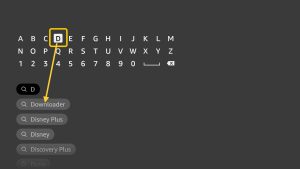
In “search” screen select D and scroll down to select “Downloader”
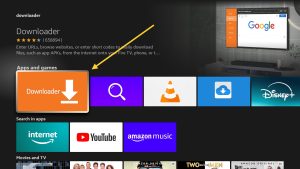
Select the “Downloader” app and select “Get” to install. Once installed, do not open yet. Press the “home” button in your remote.
Select “settings” or gear icon in your fire tv screen and scroll down select “my fire tv” in the settings (Or “My Devices” in other fire tv’s)
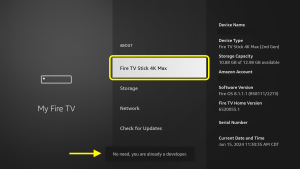
Select the fire tv name 7 times until you see the message “no need, you are already a developer” in the bottom of the screen.
Press back button and select “Developer Options” then select “Apps from unknown Sources” and select the downloader to turn ON developer option for downloader.
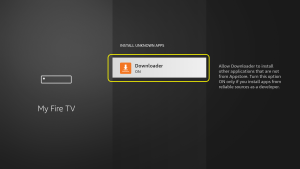
Press the back button all the way to home screen or just press home button in the remote.
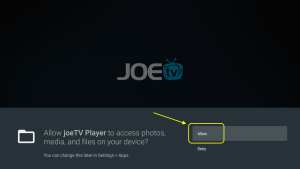
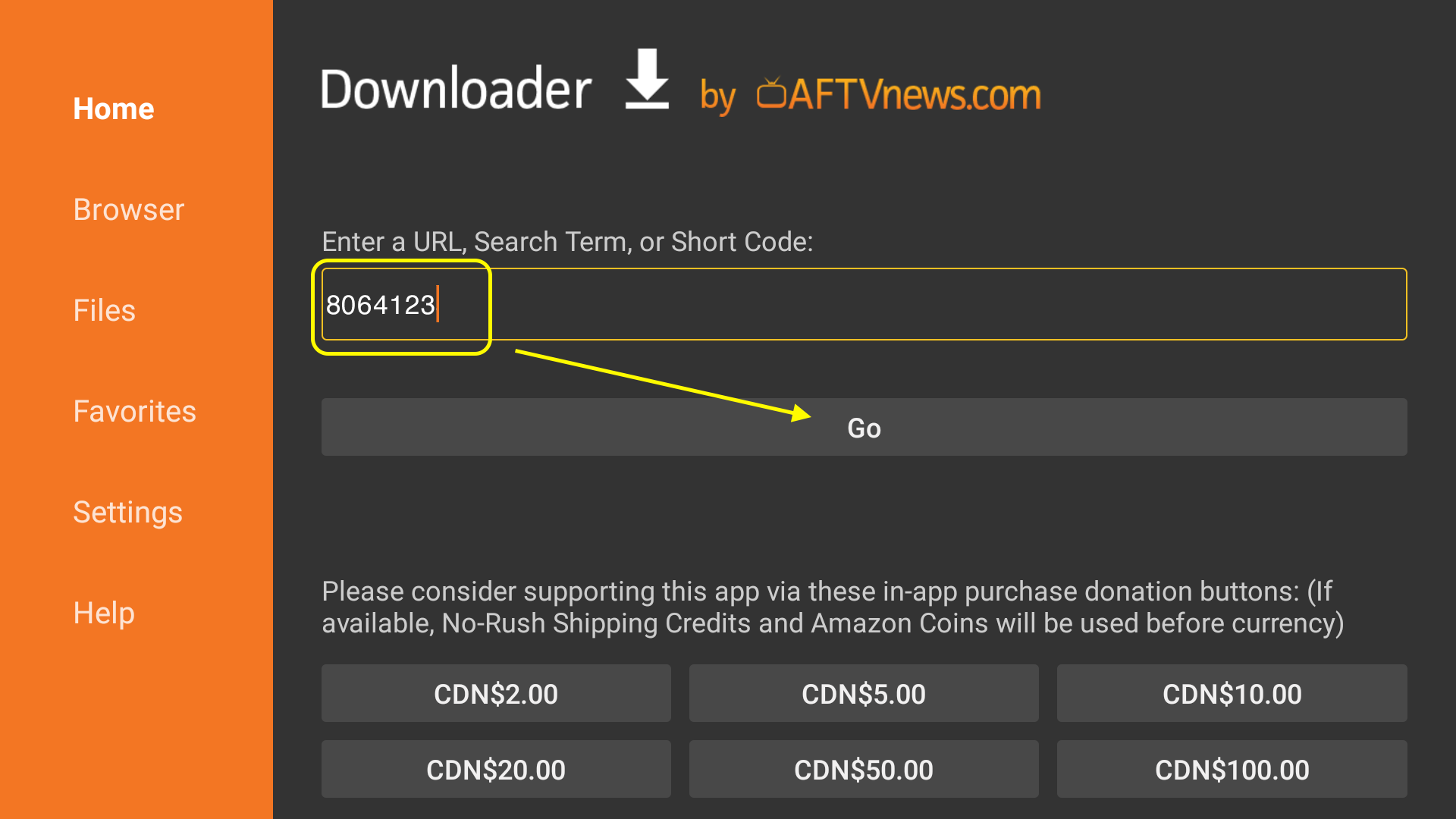
Launch “Downloader App” from recently open or from the app list in home screen. Select “ALLOW” access to your storage to save files. Type the code 8064123 in the enter a URL block and press down select go to download the application.
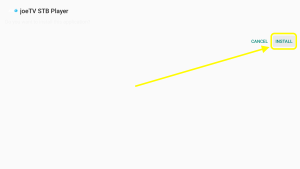
The app will automatically download, select install after its downloaded.
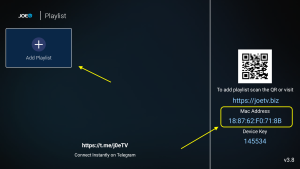
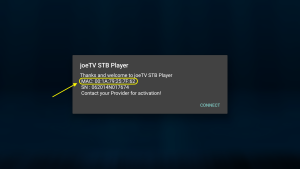
Open the joeTV Player once installed but DO NOT select “Connect” yet. Take note of the MAC address, this is needed to register your app. Provide this to support.

Step 1: You can download TV Smarters from your TV store on Samsung, LG…
Step 2: Open the app once downloaded and Enter the login details.
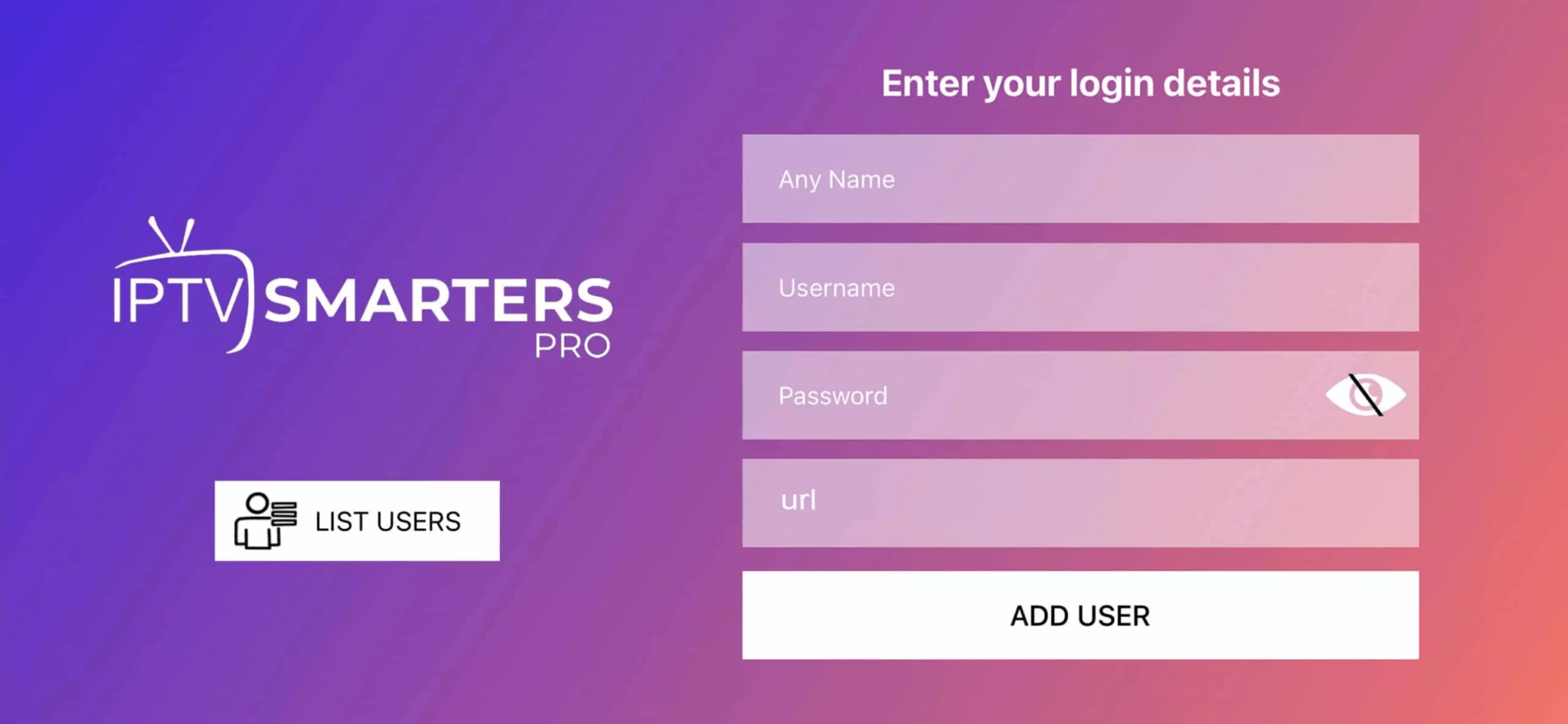
Step 3: Enter the login details that we have provided you after you get a subscription with us
P.S.: Sometimes the smart TV doesn’t support the IPTV Smarters app. In such cases, you may need to use another app, such as the iBo Player app.
How to setup TV on Android phones/tablets with Holmes Entertainment
Step 1: Start by downloading joeTV app through this URL : aftv.news/2948048
Step 2: Open the app once downloaded and Enter the login details.
Step 3: Enter the login details that we have provided you after you get a subscription with us
Now Click on “ADD USER” to proceed to the next section.
Step 4: Wait some seconds.
Step 5: Now click on “Live TV” icon as depicted in the image via a red arrow.
Step 6: Now you must select the channel group that you want to watch and proceed to the next section.
Step 7: Now you must click on the channel name and then double click on the small screen to turn into full screen as the final step.
Done
How To Setup TV On Apple/IOS With your choice of players.
Step 1: Start by downloading some available players from the Apple Store through this URL :
https://apps.apple.com/us/app/uhf-love-your-iptv/id6443751726
$9 App, Free 6 Days to test out https://apps.apple.com/us/app/ibo-pro-player/id6449647925
or you can search for it on App store
install the app on your IOS device.
Step 2: Open the app once downloaded and Enter the login details.
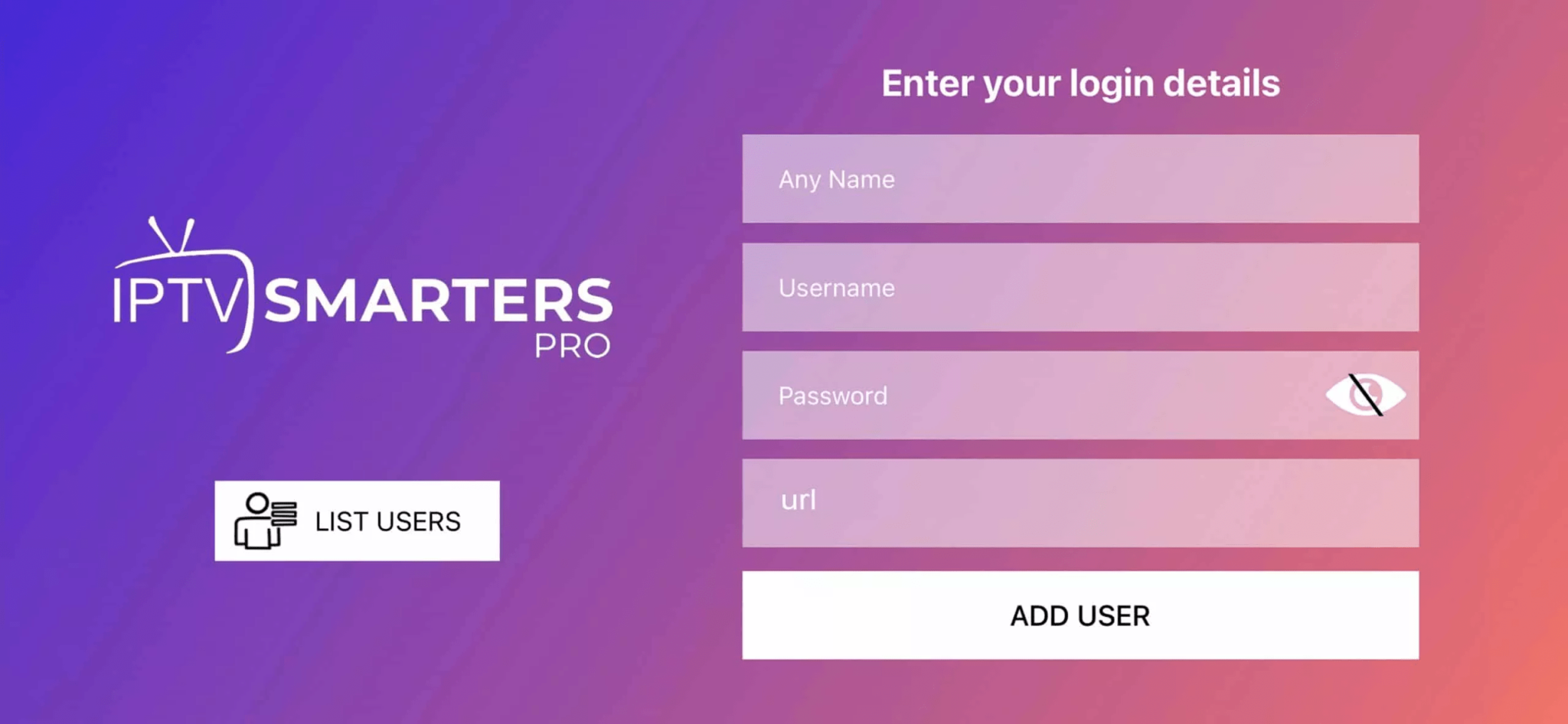
Step 3: Enter the login details that we have provided you after you get a subscription with us
Now Click on “ADD USER” to proceed to the next section.
Step 4: Wait some seconds.
Step 5: Now click on “Live TV” icon as depicted in the image via a red arrow.
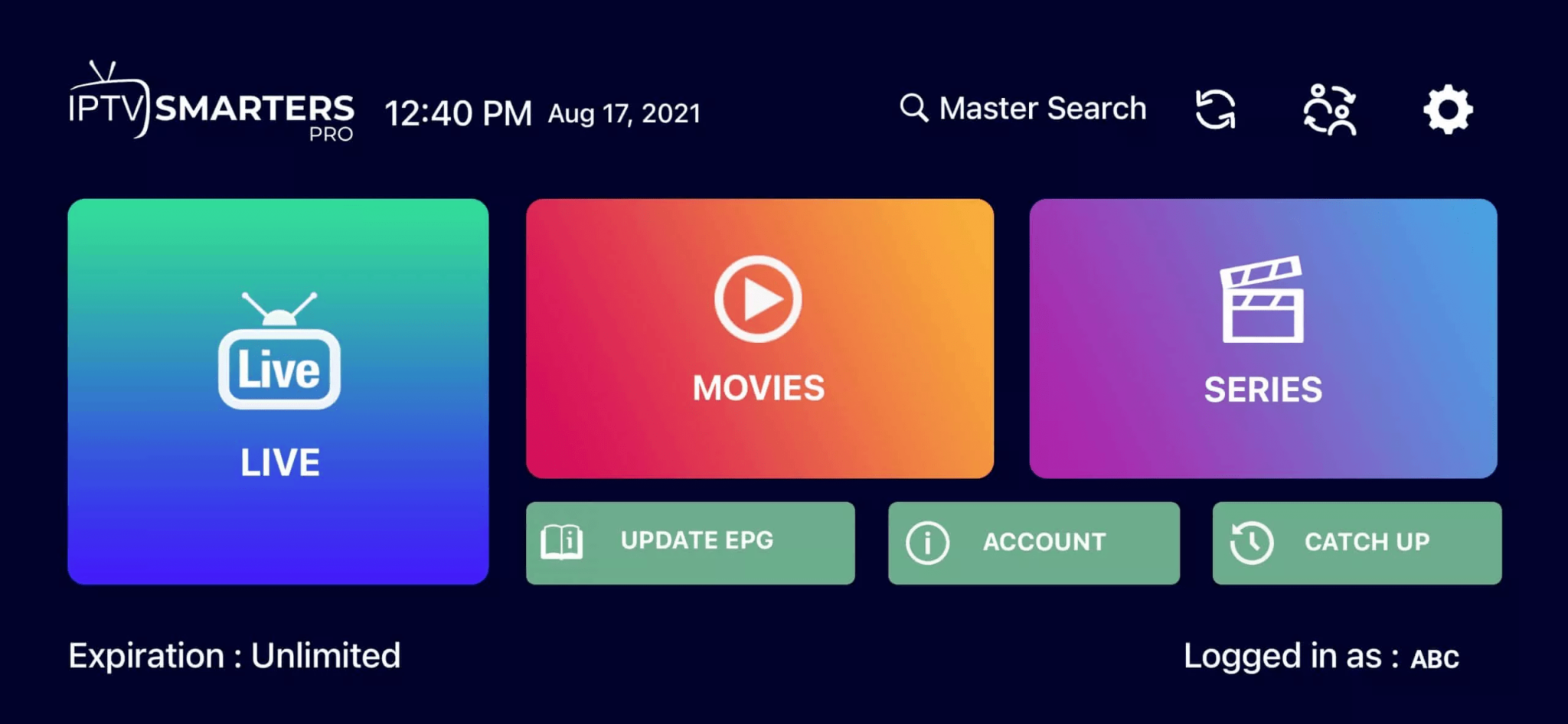
Step 6: Now you must select the channel group that you want to watch and proceed to the next section.
Step 7: Now you must click on the channel name and then double click on the small screen to turn into full screen as the final step.
Step 8: To add EPG no need to add any EPG url, Just click on “Install EPG” .
Done
Windows Method:
Download IPTV Smarters app through this URL : https://www.iptvsmarters.com/download?download=windows
MAC Method:
Download IPTV Smarters app through this URL : https://www.iptvsmarters.com/download?download=mac
Select “find” icon and press down. Select “search”
In “search” screen select D and scroll down to select “Downloader”
Select the “Downloader” app and select “Get” to install. Once installed, do not launch yet. Press the “home” button in your remote.
Select “settings” or gear icon in your fire tv screen and scroll down select “my fire tv” in the settings (Or “My Devices” in other fire tv’s)
Select the fire tv name 7 times until you see the message “no need, you are already a developer” in the bottom of the screen.
Press back button and select “Developer Options” then select “Apps from unknown Sources” and select the downloader to turn ON developer option for downloader.
Press the back button all the way to home screen or just press home button in the remote.
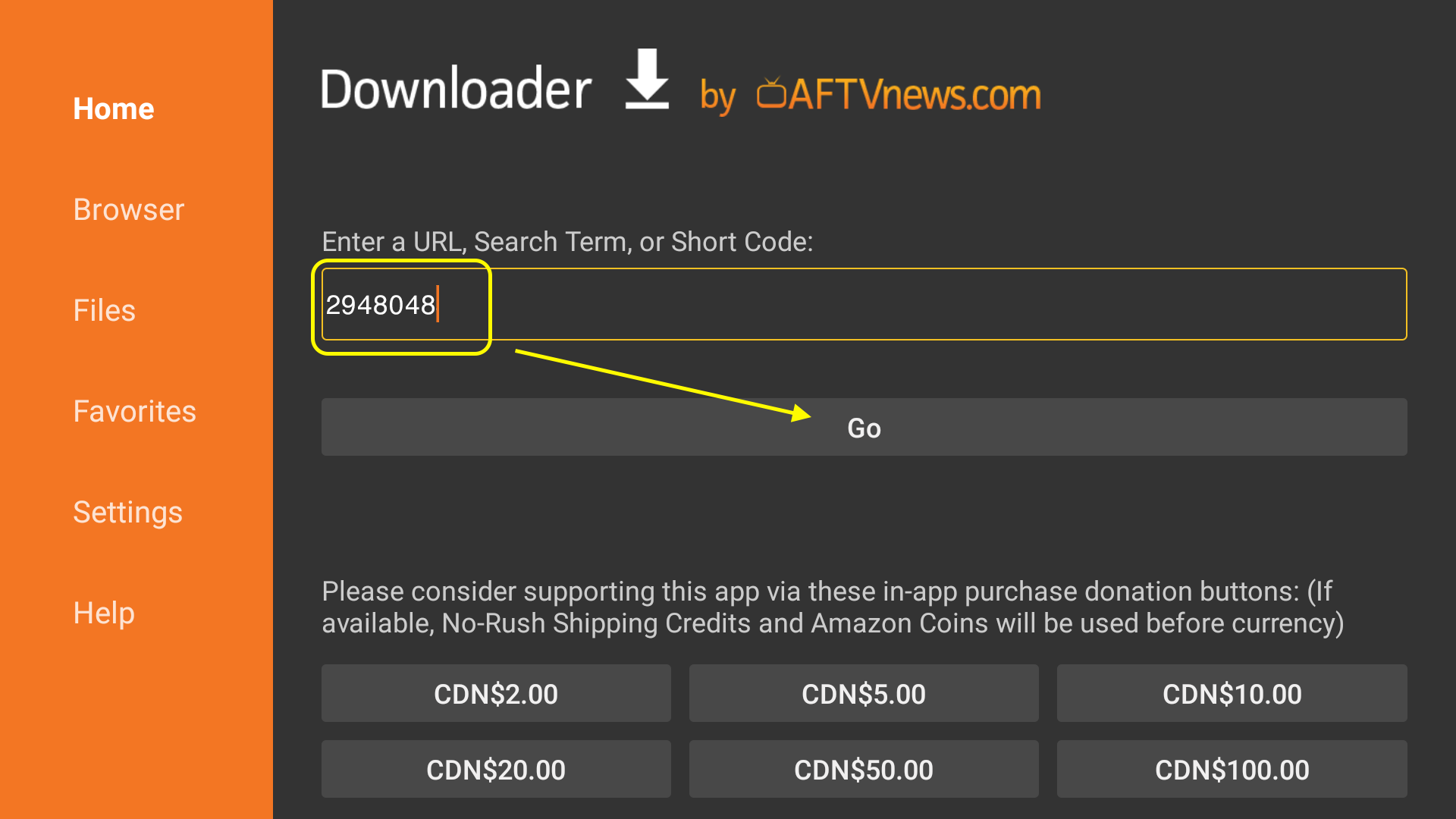
Launch “Downloader App” from recently open or from the app list in home screen. Select “ALLOW” access to your storage to save files. Type the code 2948048 in the enter a URL block and press down select go to download the application.
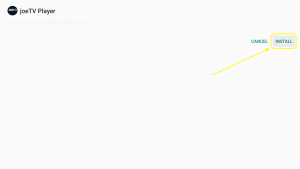
The app will automatically download, select install after its downloaded.
Open the joeTV Player once installed. Select “Allow” for the app to use firestick media player and to access firestick media storage in saving cache and catch recordings.