Installation guides
Choose your favorite device
Setting up TV can seem overwhelming at first, but don’t worry. Select a device below and follow the complete guide.
Firestick & Android
joeTV Xtream Player Installation
Follow these instructions to install the joeTV Xtream Player on a Firestick or supported Android device.
1. Download and install the “Downloader” App
Select the “Find” icon on the Fire TV home screen, press Down, and select “Search.”

On the Search screen, select the letter D, then scroll down and choose “Downloader.”

Select the Downloader app and choose “Get” to install it. Once installed, do not launch it yet. Press the Home button on your remote.

2. Enable Developer Options in Firestick
Select “Settings” or the gear icon on your Fire TV screen. Scroll down and select “My Fire TV” in Settings, or “My Devices” on other Fire TV models.

Select your Fire TV device name seven times until the message “No need, you are already a developer” appears at the bottom of the screen.

Press Back and select “Developer Options.” Open “Apps from Unknown Sources” and turn the option ON for Downloader.

Press Back until you return to the Home screen, or press the Home button on your remote.
3. Download and install joeTV Xtream Player
Launch the Downloader app from Recently Opened or from the app list on the Home screen. Select “ALLOW” so Downloader can access your storage and save files.
Enter the code 2948048 in the URL field, press Down, then select “Go” to download the application.

The app will download automatically. Select “Install” when the download is complete.
Open the joeTV Player after installation. Select “Allow” so the app can use the Firestick media player and access media storage for cache and recordings.
Select “Add Playlist” and enter your username and password if you already have them. Otherwise, send the displayed MAC address to support so your app can be registered.
Fire TV Stick
Configuring the Firestick Remote for STB Emulator
To use Play/Pause, Fast Forward, Rewind, and the colored functions shown at the bottom of the screen, the Firestick remote must be programmed.
Before you start
Use the button diagram below to identify the Menu, Fast Forward, Play/Pause, and Rewind buttons on your Firestick remote.

Open the joeTV app Settings
In the joeTV app, press the Menu button on your remote—the button with three horizontal lines. Select “Settings” at the top of the menu.

Open Configure Key Maps
Press Down three times, then select “Configure Key Maps.”

Prepare a new key
Select “Show Default Keys” to uncheck it. Press Down, then select “Add Key.”

Program Fast Forward and the Blue function
Press the Fast Forward button on your Firestick remote, then select “Action not Selected.” Scroll down, choose BTN_VIDEO_FORWARD, and select “SAVE KEY.”
Press the Fast Forward button again and select “Action not Selected.” Choose BTN_BLUE, check “Long Key Press,” then select “SAVE KEY.”

Confirm the first two programmed keys
The Fast Forward button and its Blue long-press function should now appear in your key map. Next, program the Play/Pause button.

Program Play/Pause and the Yellow function
Press the Play/Pause button on your Firestick remote and select “Action not Selected.” Scroll all the way down, choose BTN_VIDEO_PLAY_PAUSE, and select “SAVE KEY.”
Press Play/Pause again and select “Action not Selected.” Choose BTN_YELLOW, check “Long Key Press,” then select “SAVE KEY.”

Confirm the first four programmed keys
The key map should now show four programmed functions. Next, program the Rewind button.

Program Rewind and the Green function
Press the Rewind button on your Firestick remote and select “Action not Selected.” Scroll all the way down, choose BTN_VIDEO_REWIND, and select “SAVE KEY.”
Press Rewind again and select “Action not Selected.” Choose BTN_GREEN, check “Long Key Press,” then select “SAVE KEY.”

Samsung & LG
Set up IPTV on a Smart TV
Step 1
Download TV Smarters from your TV store on Samsung, LG, or another supported Smart TV.
Step 2
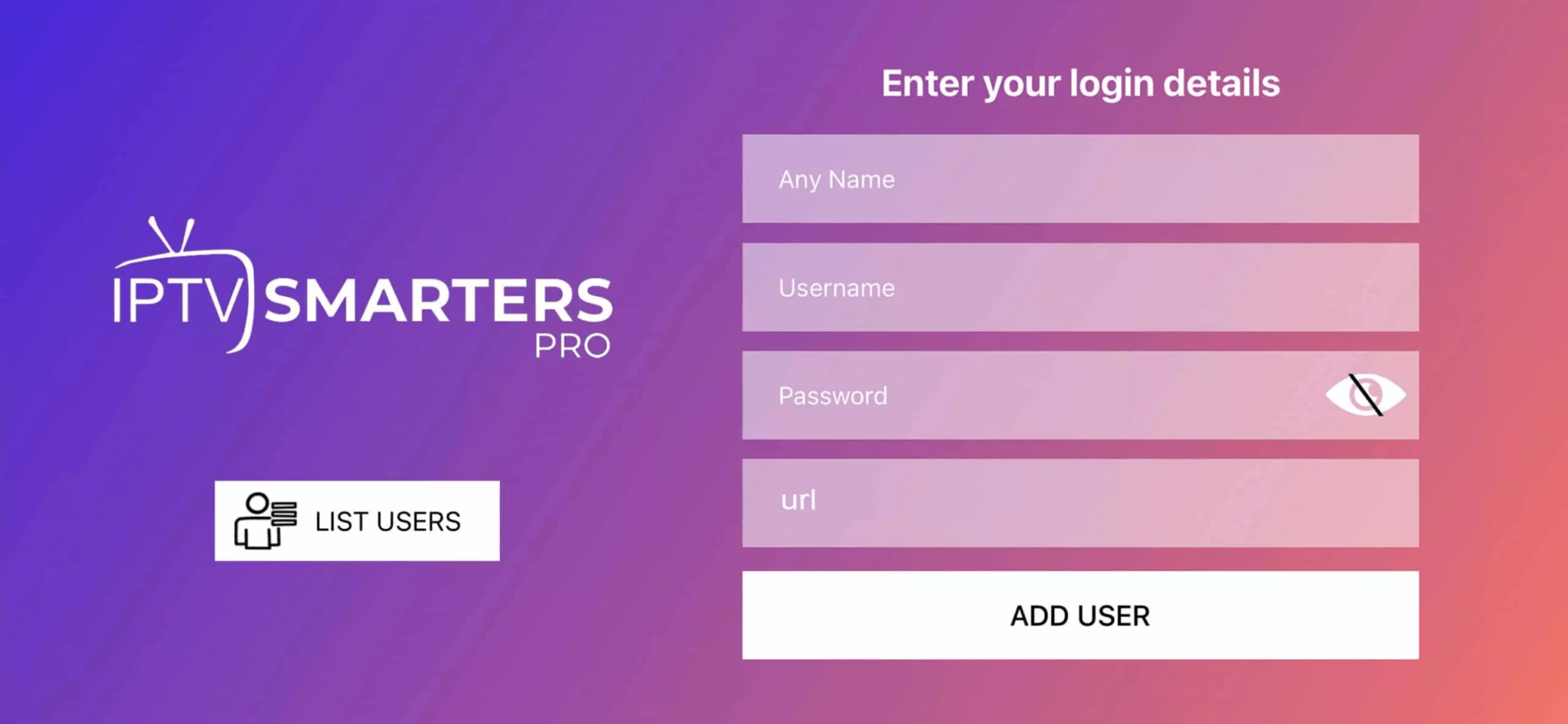
Open the app once downloaded and enter your login details.
Step 3
Enter the login details provided to you after you get a subscription with us.
Phones & tablets
How to set up TV on Android
Step 1
Download the joeTV app through aftv.news/2948048.
Steps 2–3
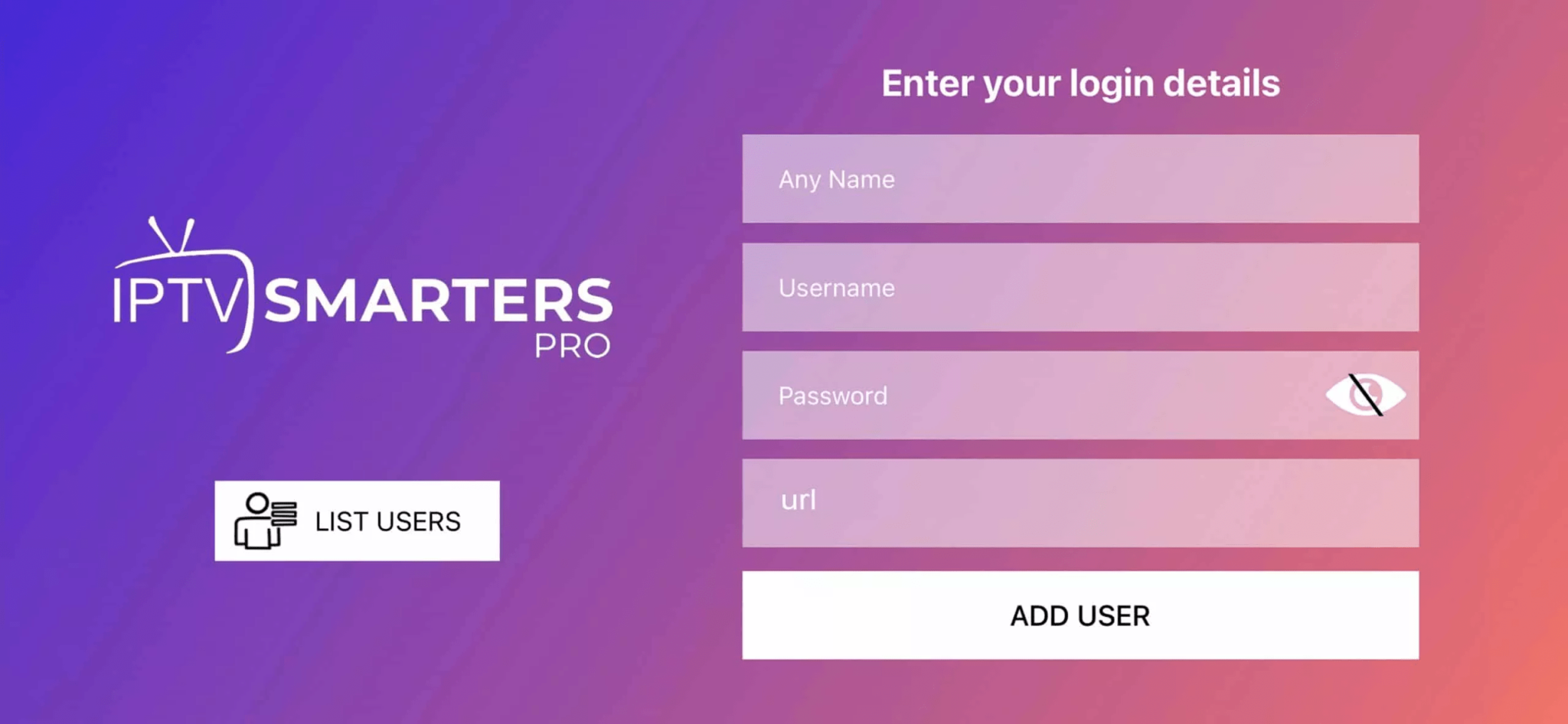
Open the downloaded app and enter the login details provided after you get a subscription. Click “Add User” to continue.
Step 4
Wait a few seconds while the app loads your account.
Step 5
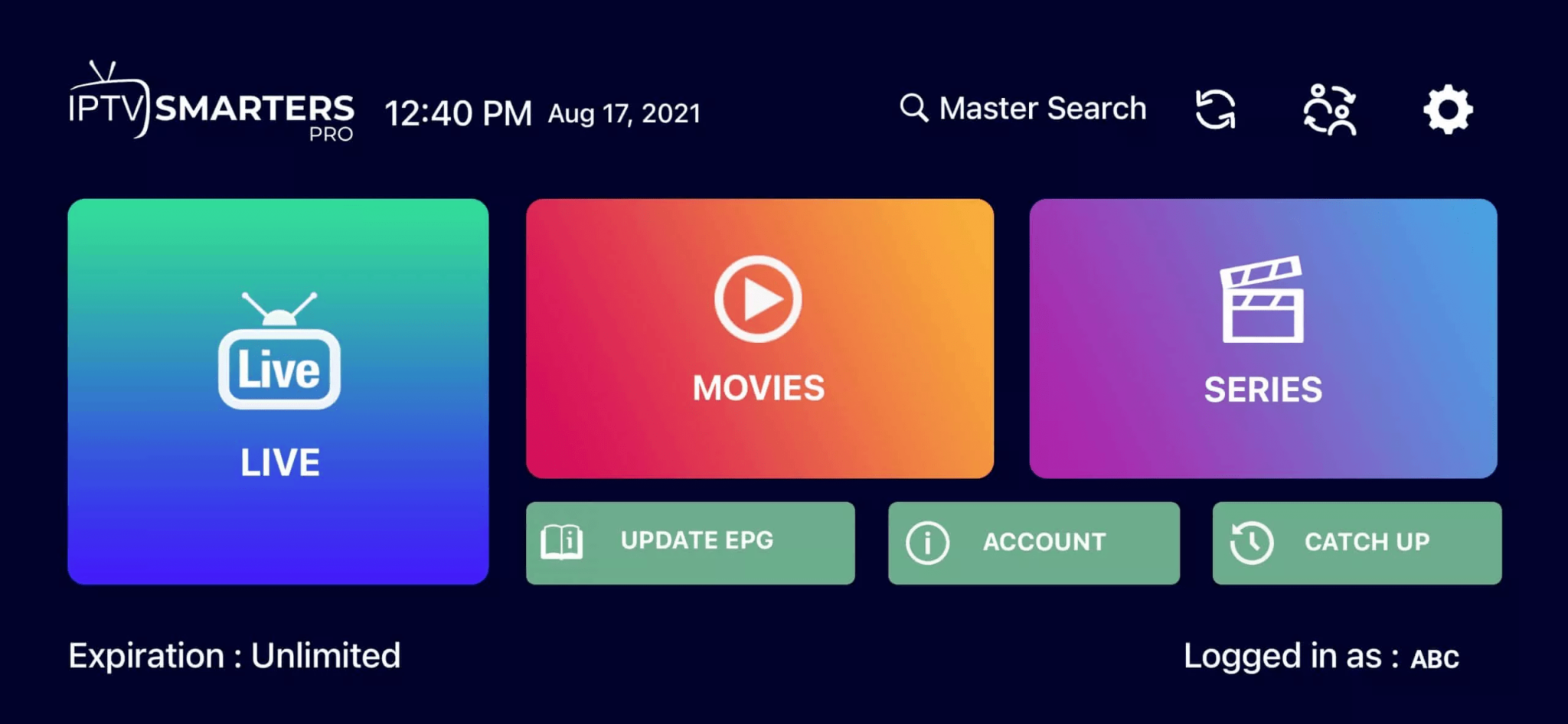
Click the “Live TV” icon.
Step 6
Select the channel group that you want to watch and proceed to the next section.
Step 7
Click the channel name, then double-click the small screen to switch to full-screen mode.
iPhone & iPad
Set up TV on Apple iOS
Step 1
Download an available player from the Apple App Store:
IBO Pro Player — $9 app with six free test days.
You can also search for either app directly in the App Store and install it on your iOS device.
Steps 2–3
Open the app and enter the login details provided after you get a subscription. Click “Add User” to continue.
Steps 4–5
Wait a few seconds, then click the “Live TV” icon.
Steps 6–7
Select the channel group you want to watch. Click the channel name, then double-click the small screen to switch to full-screen mode.
Step 8
To add EPG, you do not need to enter an EPG URL. Just click “Install EPG.”
Desktop apps